Accessing The New Order History
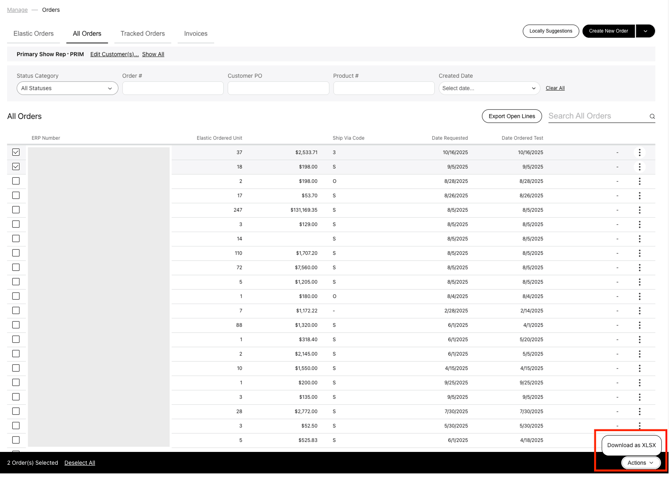
- From the Manage tab, select Orders.
- Order History is now integrated within the All Orders tab.

This change keeps a clear separation between active seasonal builds (Elastic Orders) and finalized, locked ERP transaction data (All Orders).
Navigating the New Order History
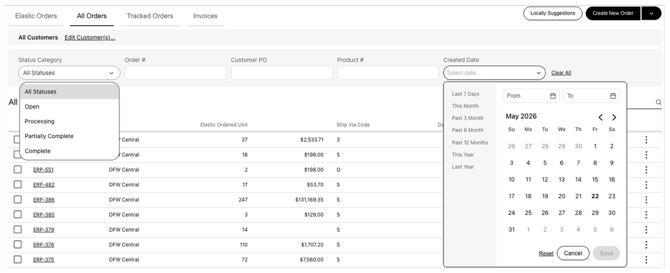
By default, the All Orders tab displays records matching standard search parameters. You can refine the view by filtering on specific clients, time frames, or status categories.
The New Order Details Page
Clicking an order opens its detail page, presenting all the information that relates to the order.
- Order Header & Actions: The top section displays the order's global details (customer PO, order number, dates, currency, totals, etc.). The Actions menu lets you export the entire order as an Excel file, print a clean version of the order, or contact support.

-
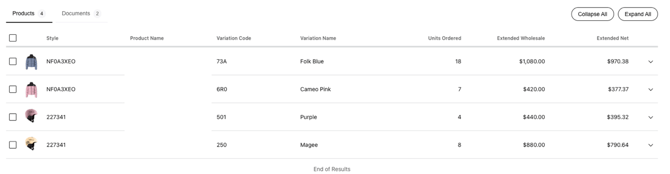
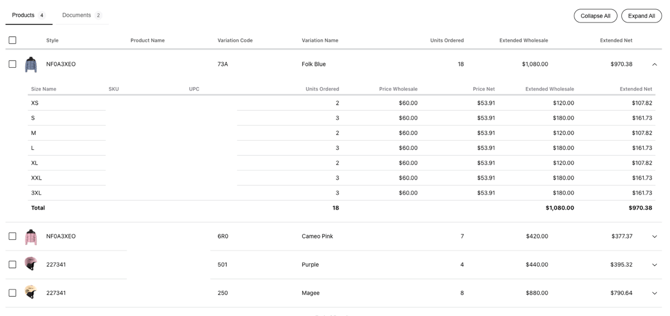
Products Tab: Lists the products included in the shipment, product image, style number, product name, color/variation code, wholesale price, and total units ordered. Expanding a product line opens a nested grid with size-level detail, so you can audit exact variant quantities (e.g., units, price, and totals by size).
-
Expanding a product line opens a nested grid displaying the granular details of the sizes ordered for that specific item, allowing you to audit exact variant quantities.
-
Associated Documents Tab: Lists all downloadable documents linked to the order, including official invoices generated by the backend ERP system and any other external attachments.

New Bulk Export Feature
-
You can bulk Excel Export one or more orders using the checkboxes next to each order line. Once orders are selected, a Download as XLSX button automatically appears at the bottom of the viewport. Click it to download a consolidated Excel file of the selected orders.