
Our support pages have been provided in English, to translate to your desired language you can use the built-in translate function in Chrome or Firefox.
Menu (Collection)
Selecting the 'Menu' from within your Collection offers you multiple options. You can save or rename your Collection, or create a completely new one. You can access the 'Menu' in the top-right corner of the Collection Builder.
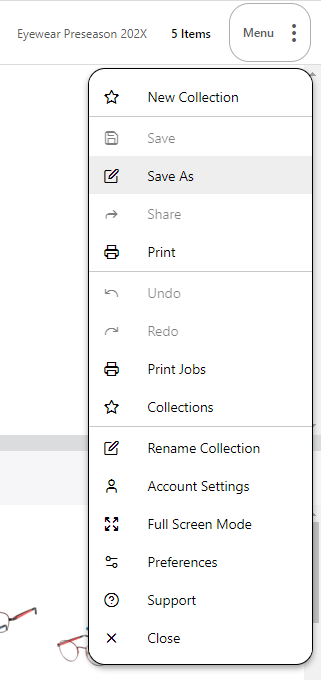
Clicking on this Menu will display a drop-down with several options.
 Save Save |
Saves your order to the cloud |
 Save As Save As |
Saves a new copy of your order |
 Share Share |
Share your Collection with your buyers / other Elastic users in your organization |
 Print Print |
Export a PDF of your Collection |
 Undo Undo |
Undo Previous Action |
 Redo Redo |
Redo Previous Action |
 Print Jobs Print Jobs |
Exit the Collection and open the Print Jobs view. This is where all of the PDFs you generate in Elastic will be available to download |
 Collections Collections |
Exit the Current Collection and open a list of your Collections |
 Rename Collection Rename Collection |
Change the name of your Collection |
 Account Settings Account Settings |
Change your username, Password, or email here |
 Full-Screen Mode Full-Screen Mode |
The Elastic tool will fill your entire screen. Recommended when creating preseason orders and Whiteboards |
 Preferences Preferences |
Change price displays and Language |
 Support Support |
Links to the Elastic Support Homepage |
 Close Close |
Exit the Collection Builder and go back to the Dashboard. You will be given the option to save if you have any unsaved changes. |