
Our support pages have been provided in English, to translate to your desired language you can use the built-in translate function in Chrome or Firefox.
Imports
On the Elastic SFTP Server, you'll see several folders that hold all of your brand's information. This is the exported data from your brand's ERP into Elastic.
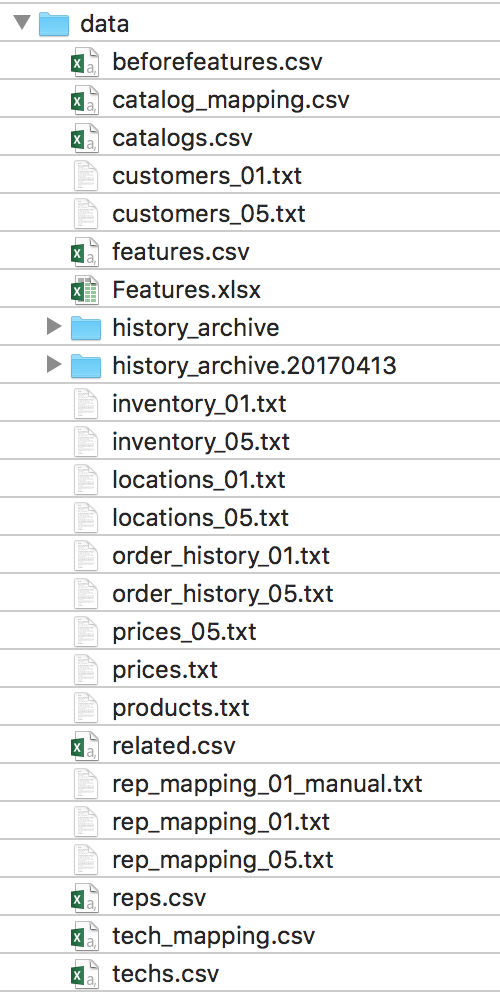
When this data is edited, you can manually push imports into Elastic using the Imports feature. The data listed in the 'Kinds of Imports' section below will match up with the FTP data (this varies by brand.) When you make a change to the FTP, make sure your source (aka ERP) has been edited too or else the FTP site will be over-ridden each time an import is run.
For more info on the SFTP server, click HERE .
Kinds of Imports (These will vary by brand)
Catalogs Import
Included: all files related to catalogs and product info
- catalogs.csv/txt
- catalog_mapping.csv/txt
- products.csv/txt
- prices.csv/txt
- prices.csv/txt
- features.csv/txt
- techs.csv/txt
- tech_mapping.csv/txt
- related.csv/txt
Customers Import
Included: all files related to reps and customers
- customers.csv/txt
- rep_mapping.csv/txt
- reps.csv/txt
- locations.csv/txt
Inventory Import
Included: all files related to inventory
- inventory.csv/txt
Order History Import
Included: all files related to order histories
- order_history.csv/txt
Start a New Import
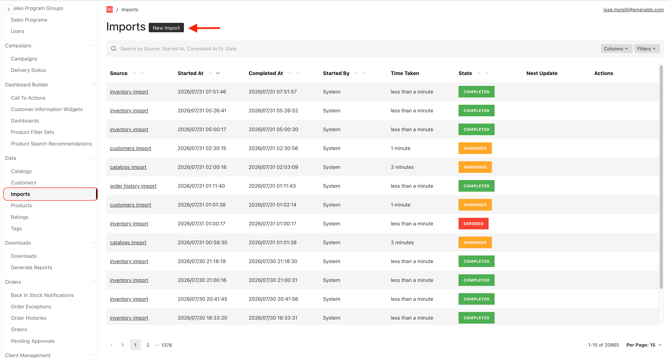
Select Imports under Data option on the left-side menu. You'll come to a screen that is home to all of the Elastic imports from your brand's ERP.
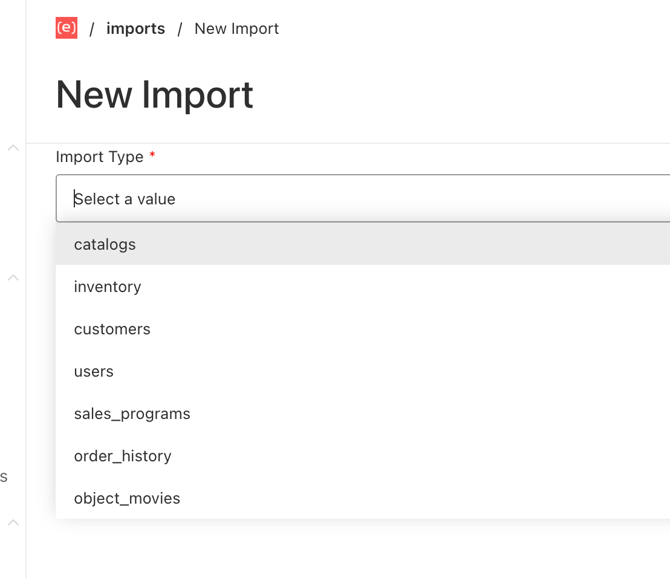
To start a new import, click 'New Import' at the top of the page, and finally, select the Import type you want to start. From here, you can also see who triggered a certain import.
Import Confirmation
Once the import has begun, you will be taken back to the previous screen and the import 'State' will update to 'Running'. When the import is finished running, you will get one of three status updates:

Your import completed running without any problems.

Your import completed, however, there were some warnings. (Click on the import name to see what the warnings are.)

Your import failed due to the following reason[s]. (Click on the import name.)