Our support pages have been provided in English, to translate to your desired language you can use the built-in translate function in Chrome or Firefox.
Zooming in and out in Whiteboard
Within the Whiteboard, the zoom feature can be found on the top toolbar. You can also hover over it to see the keyboard shortcut.
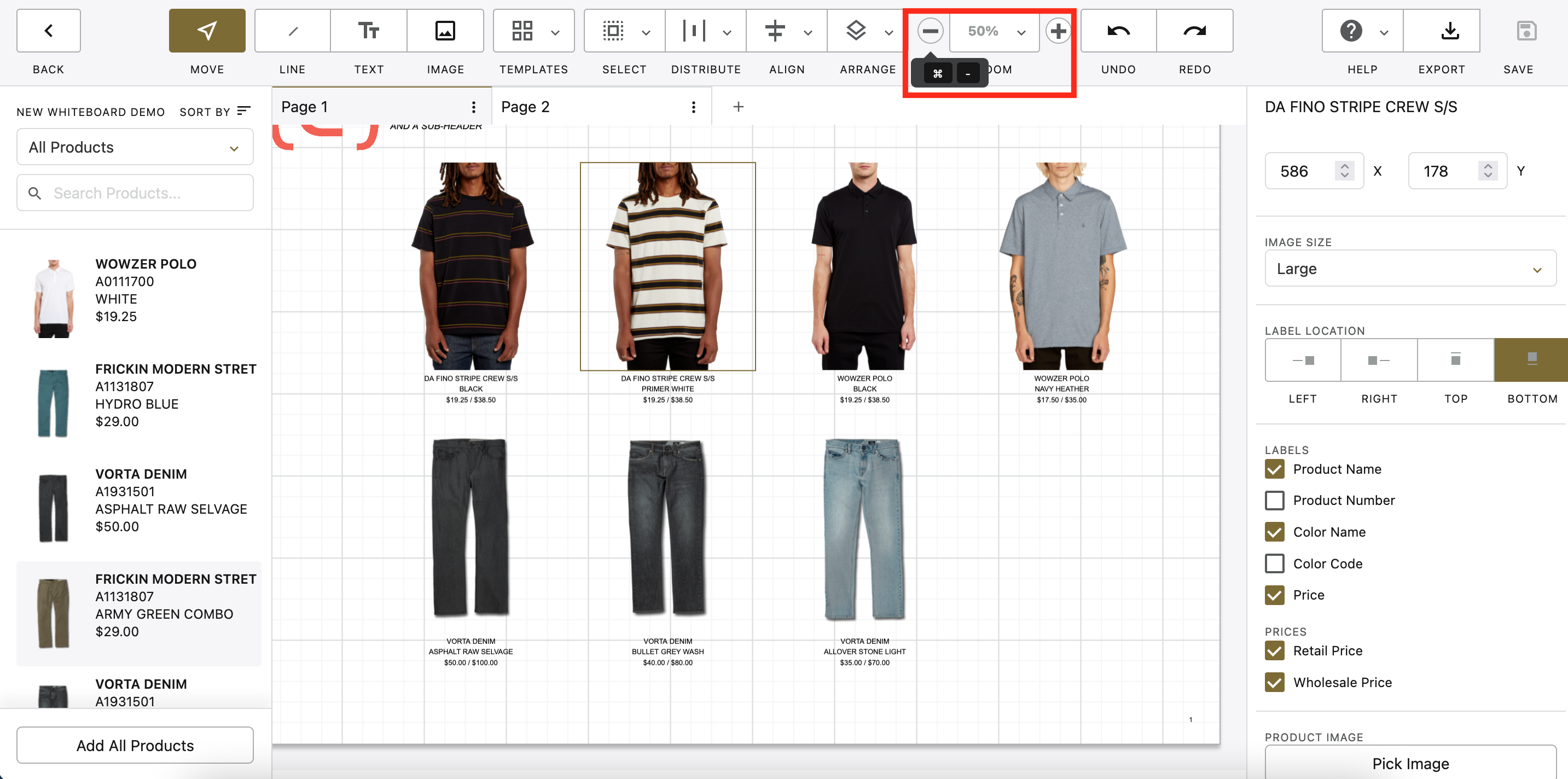
Zoom Feature
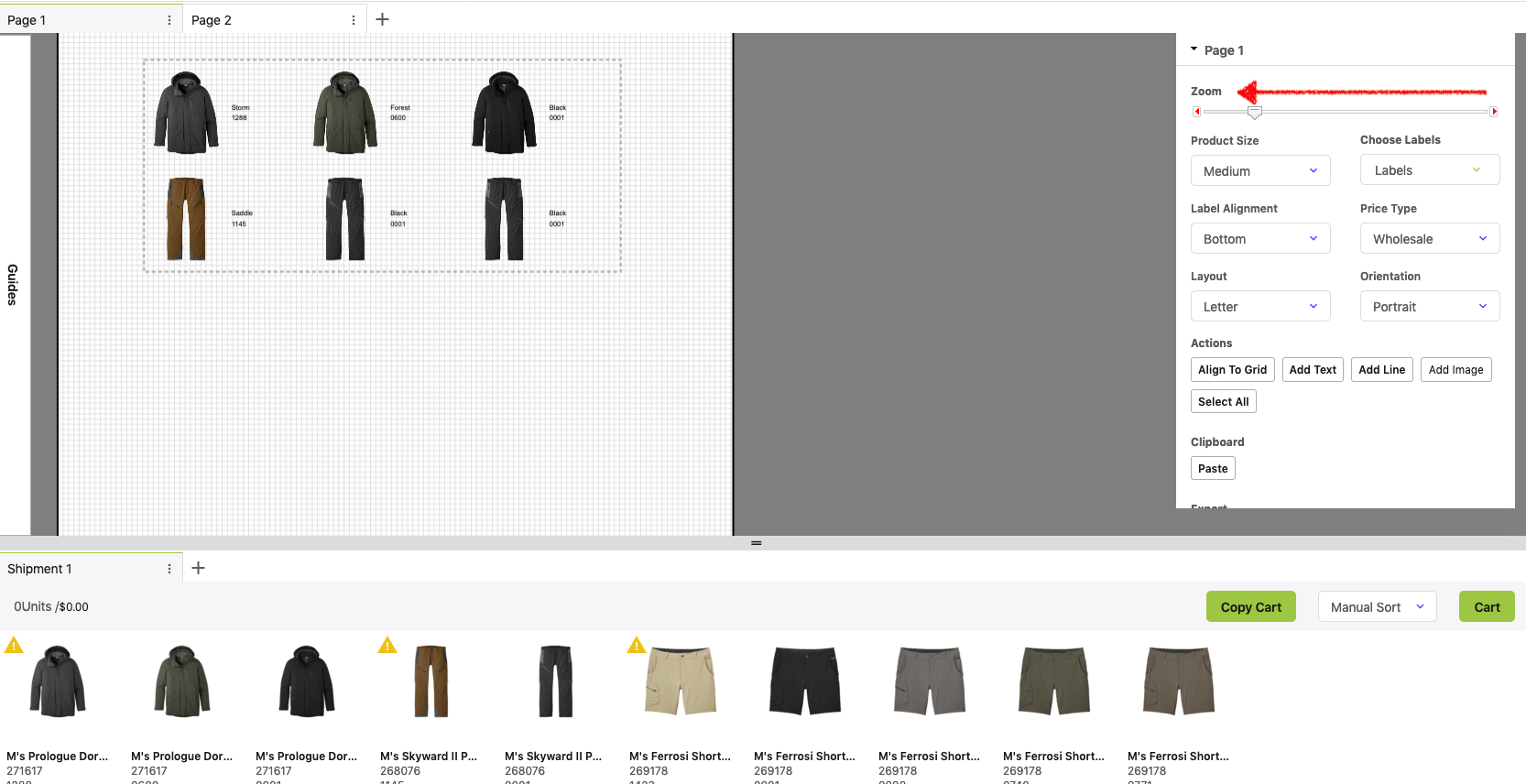
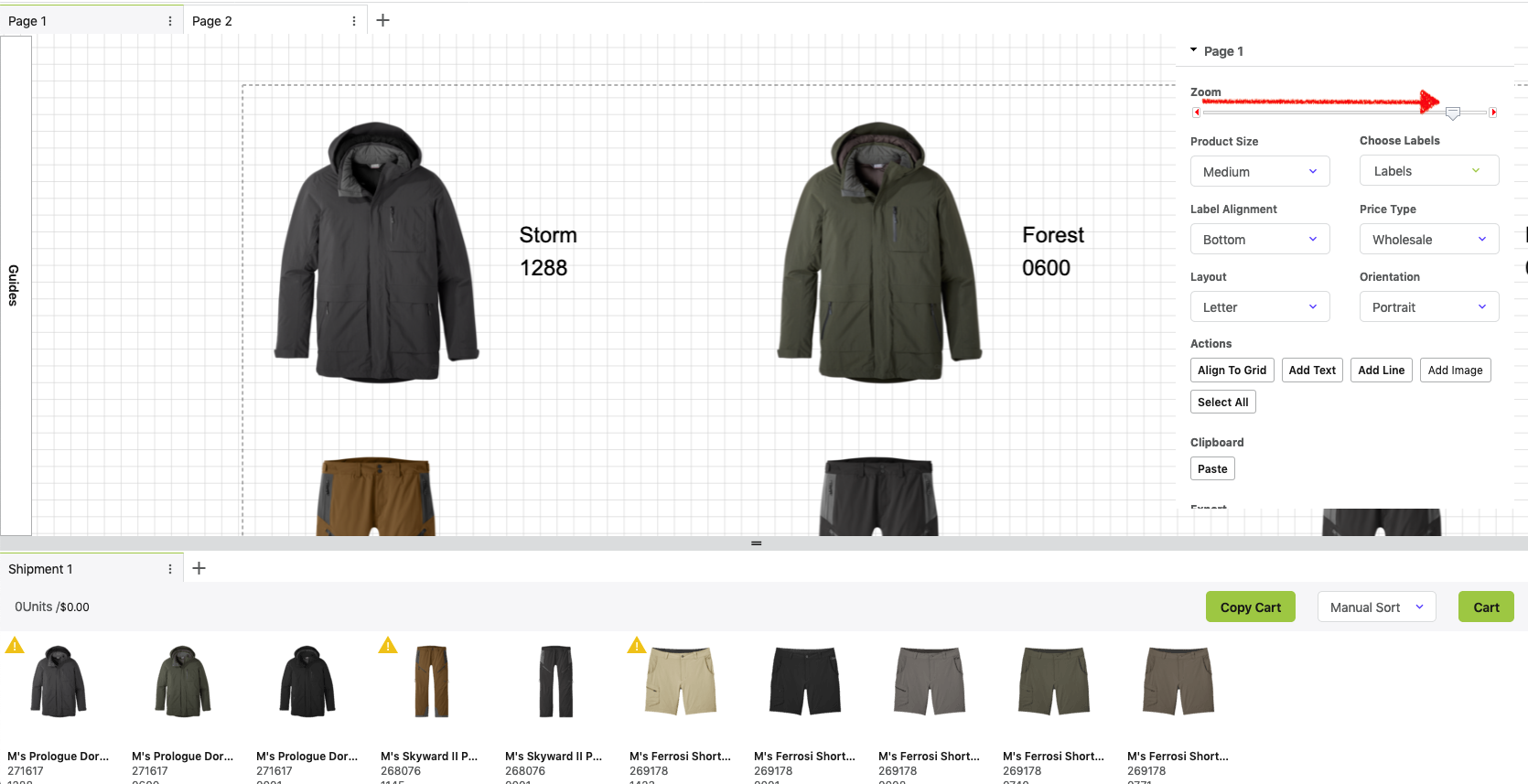
Sometimes you may want to look at your entire Whiteboard to view everything at once or to work with a larger group of product images. At the very bottom of the Whiteboard inspector, there is a slider that will allow you to zoom the Whiteboard in or out while keeping your interface the same size.
Zoom In – Focus on a specific area of the Whiteboard page by moving the zoom slider to the right.
Zoom Out – See a larger area of the Whiteboard page by moving the zoom slider to the left.